Linux for DevOps

DevOps Engineer with 3.3 years of experience in automation, scripting, and cloud technologies. Expertise in designing and implementing CI/CD pipelines, containerization, and cloud infrastructure with a strong focus on Infrastructure as Code (IaC). Skilled in cloud-native applications, monitoring, and secure DevOps practices to enhance system reliability and scalability.
What is an Operating System (OS)?
An Operating System (OS) is system software that manages hardware resources and provides essential services for applications. It acts as an interface between the user and the computer, enabling seamless interaction. Examples include Windows, Linux, and macOS.
Difference Between Client OS and Server OS
| Feature | Client OS | Server OS |
| Purpose | Designed for personal use, multitasking, and general applications. | Built to handle network services, databases, and large-scale computing. |
| Performance | Optimized for user experience and GUI-based applications. | Optimized for high availability, security, and performance. |
| Examples | Windows 10, macOS, Ubuntu Desktop | Windows Server, Ubuntu Server, Red Hat Enterprise Linux |
| User Management | Supports limited users and authentication. | Supports multiple users, roles, and permissions. |
| Security & Stability | Regular updates, but less hardened for security. | Enhanced security features, firewall rules, and monitoring tools. |
| Scalability | Not designed for handling heavy workloads. | Supports scaling for enterprise applications, cloud computing, and databases. |
What is Linux for DevOps?
Linux for DevOps refers to using Linux-based systems to automate infrastructure management, deployment, and monitoring in DevOps workflows. It provides stability, flexibility, and powerful tools for CI/CD, cloud computing, and server management.
Architecture of Linux :
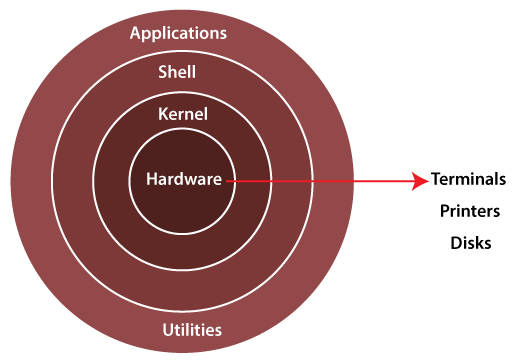
Hardware Layer
- The physical components like CPU, RAM, disk, and network devices.
Kernel (Core of Linux)
Manages CPU, memory, file systems, and device drivers.
Handles process scheduling, security, and hardware communication.
Shell & Utilities
The command-line interface (CLI) that allows users to interact with the system.
Examples: Bash, Zsh, Fish.
User Applications
- Programs like browsers, text editors, and development tools that run on Linux.
Basic Linux Commands for DevOps in Daily Work
As a DevOps engineer, Linux is essential for managing servers, automation, and deployments. Here are some must-know Linux commands used in daily operations:
1. User & Access Management
Check current user →
whoamiSwitch user →
su - usernameCreate a new user →
useradd -m usernameAdd user to sudo group →
usermod -aG sudo usernameSet or change password →
passwd username
2. File & Directory Management
List files →
ls -lCreate a directory →
mkdir my_folderNavigate into a directory →
cd my_folderCreate a file →
touch file.txtCopy a file →
cp file.txt /destination/Move/Rename a file →
mv oldname.txt newname.txtDelete a file →
rm file.txtDelete a directory →
rm -r folder_name
3. Permissions & Ownership
Check file permissions →
ls -l file.txtChange file permissions →
chmod 750 file.txtChange file owner →
chown user:group file.txt
4. Disk & Storage Management
Check disk space usage →
df -hCheck folder size →
du -sh /folder/Find large files →
find / -type f -size +100M
5. Networking Commands
Check network configuration →
ip aorifconfigCheck active network connections →
netstat -tulnpPing a server →
pinggoogle.comCheck open ports →
ss -tulnDownload a file →
wget URL
6. Package Management
Debian-based (Ubuntu, Debian):
apt update && apt upgrade -y(Update system)apt install package-name(Install package)apt remove package-name(Remove package)
Understanding sudo in Linux
What is sudo?
sudo (Superuser Do) is a command that allows a user to execute administrative (root) commands without logging in as root. It ensures security by limiting full system access to authorized users.
Why is sudo Important for DevOps?
Prevents direct root login, reducing security risks.
Allows controlled privilege escalation for specific tasks.
Tracks command history via logs (
/var/log/auth.log).Essential for automation scripts requiring elevated permissions.
Basic Usage of sudo
Run a command with root privileges:
bashCopyEditsudo apt updateSwitch to root user:
bashCopyEditsudo suRun a command as another user:
bashCopyEditsudo -u username commandEdit system files (e.g.,
hostsfile):bashCopyEditsudo nano /etc/hosts
Managing sudo Access
Check if a user has
sudoaccess:bashCopyEditsudo -lAdd a user to the sudo group (Debian-based systems):
bashCopyEditsudo usermod -aG sudo usernameAdd a user to the wheel group (RHEL-based systems):
bashCopyEditsudo usermod -aG wheel usernameModify sudo permissions (
/etc/sudoers):
Open the file safely using:bashCopyEditsudo visudoAdd a rule for a specific user:
sqlCopyEditusername ALL=(ALL) NOPASSWD:ALL(Allows the user to run
sudocommands without a password.)
Common sudo Errors & Fixes
🔹 "User is not in the sudoers file"
➡ Solution: Add the user to the sudo group using usermod -aG sudo username.
🔹 "Permission denied" while editing system files
➡ Solution: Use sudo before nano or vim, e.g., sudo nano /etc/hosts.
🔹 Accidentally removed sudo access for all users
➡ Solution: Boot into recovery mode and manually add a user to the sudoers file.
Users and Groups in Linux
Understanding Users & Groups in Linux
Linux is a multi-user operating system, meaning multiple users can work on the same system with different privileges.
User: An account that interacts with the system. Each user has a unique UID (User ID).
Group: A collection of users that share permissions. Each group has a GID (Group ID).
How to Create a User and Group in Linux?
1. Create a User (devops_user)
To create a new user:
bashCopyEditsudo useradd -m devops_user
-m→ Creates a home directory (/home/devops_user).
2. Create a Group (devops_team)
bashCopyEditsudo groupadd devops_team
This creates a new group named devops_team.
3. Add the User to the Group
bashCopyEditsudo usermod -aG devops_team devops_user
-aG→ Appends the user to the group.
4. Set a Password for the User
bashCopyEditsudo passwd devops_user
You will be prompted to enter a new password.
Granting sudo Access to the User
To allow devops_user to run commands as a superuser:
bashCopyEditsudo usermod -aG sudo devops_user   # Debian/Ubuntu
sudo usermod -aG wheel devops_user  # RHEL/CentOS
Alternatively, you can edit the sudoers file:
bashCopyEditsudo visudo
Add the following line:
bashCopyEditdevops_user ALL=(ALL) NOPASSWD:ALL
This grants password-less sudo access to devops_user.
Restricting SSH Login for Certain Users
To prevent specific users from logging in via SSH, modify the SSH configuration:
Edit the SSH configuration file:
bashCopyEditsudo nano /etc/ssh/sshd_configAdd the following lines at the end:
 bashCopyEditDenyUsers user1 user2
 AllowUsers devops_user
(Replace
user1anduser2with actual usernames to restrict.)Restart the SSH service to apply changes:
bashCopyEditsudo systemctl restart sshd
File Permissions in Linux
Understanding Linux File Permissions
In Linux, file permissions determine who can read, write, or execute a file or directory. Every file and directory has three types of users and three types of permissions:
1. User Categories:
Owner → The user who created the file.
Group → A set of users who share permissions.
Others → Anyone else on the system.
2. Permission Types:
| Symbol | Permission | Numeric Value | Description |
r | Read | 4 | View file contents |
w | Write | 2 | Modify or delete the file |
x | Execute | 1 | Run the file as a program |
Viewing File Permissions
To check permissions of a file:
bashCopyEditls -l filename
Example output:
csharpCopyEdit-rwxr--r-- 1 user group 1234 Feb 8 12:30 script.sh
Explanation:
-rwxr--r--→ File type and permissions.-→ Regular file (ordfor a directory).rwx→ Owner can read, write, execute.r--→ Group can only read.r--→ Others can only read.
Changing File Permissions (chmod)
1. Symbolic Method
Modify permissions using chmod:
Give execute permission to the owner:
bashCopyEditchmod u+x filenameRemove write permission for others:
bashCopyEditchmod o-w filenameGrant read & write permissions to the group:
bashCopyEditchmod g+rw filename
2. Numeric (Octal) Method
Permissions can also be changed using numbers:
bashCopyEditchmod 754 filename
7(Owner) →rwx(4+2+1 = 7)5(Group) →r-x(4+0+1 = 5)4(Others) →r--(4+0+0 = 4)
Linux File Permission Truth Table
This table summarizes the numeric values and their permissions:
| Binary | Octal | Permission | Symbol |
| 000 | 0 | No permission | --- |
| 001 | 1 | Execute only | --x |
| 010 | 2 | Write only | -w- |
| 011 | 3 | Write & Execute | -wx |
| 100 | 4 | Read only | r-- |
| 101 | 5 | Read & Execute | r-x |
| 110 | 6 | Read & Write | rw- |
| 111 | 7 | Read, Write, Execute | rwx |
